Checking OMR Sheets by Hand Is Wasting Your Time
Every coaching class owner knows the routine. The test is over, and now a pile of answer sheets is waiting. You check each one against the answer key, count the marks, subtract the negative marks, add up the totals, work out the ranks, write report cards and then message every parent.
For a batch of 40 students, that can take a full evening, and one counting mistake can upset a parent.
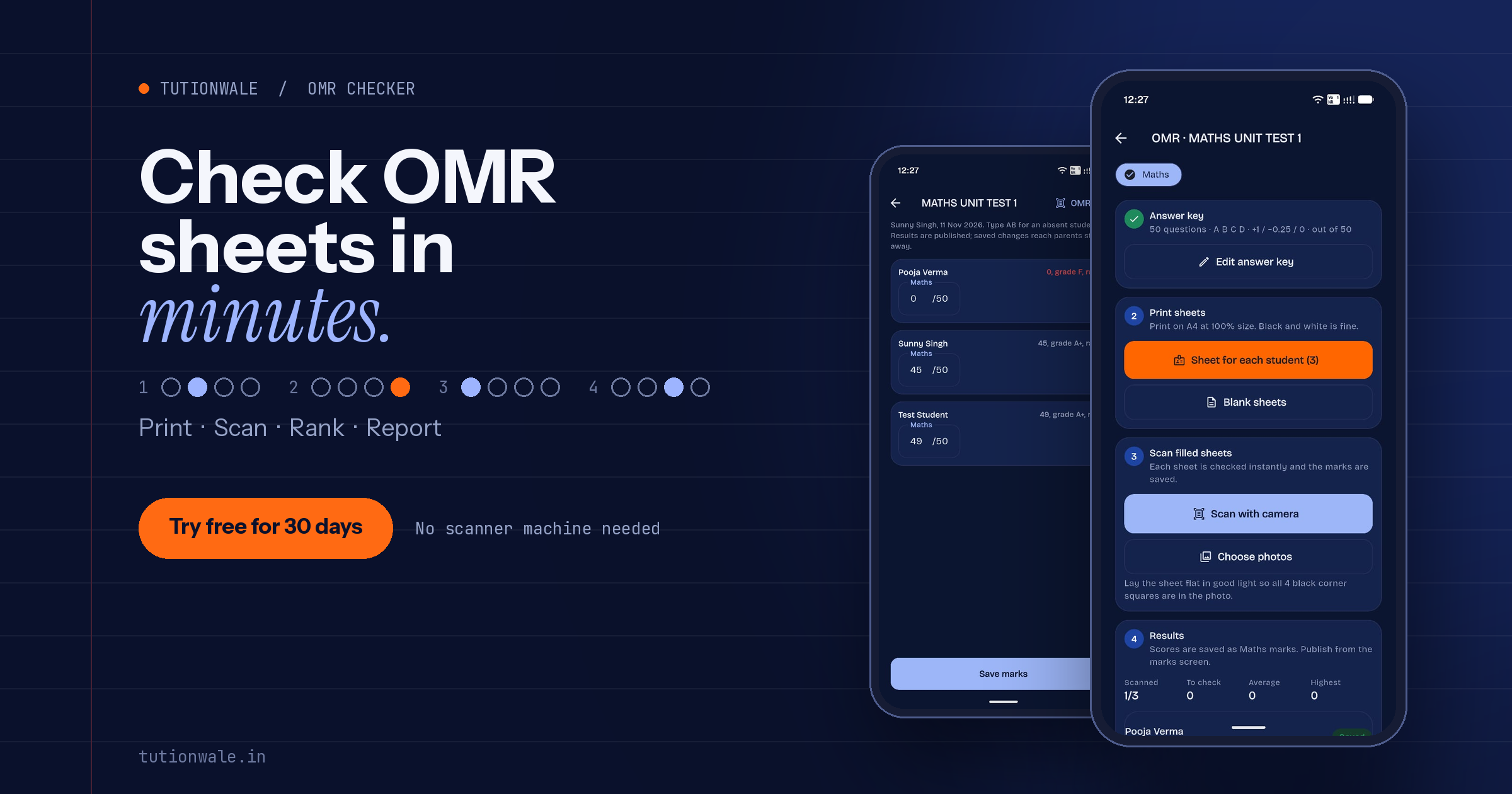
Tutionwale’s OMR feature does all of this for you. You set the answer key, print the sheets, scan them with your phone, and results, ranks and report cards go to parents automatically.
What Is an OMR Sheet?
An OMR (Optical Mark Recognition) sheet is the bubble answer sheet used in exams like JEE, NEET, CUET and most competitive exams. Students fill in a circle for each answer, and a machine reads the marks.
Practising on OMR sheets in class gets students used to the real exam format: filling bubbles carefully, managing time and dealing with negative marking.
How Tutionwale’s OMR System Works
Step 1: Create the Exam and Answer Key
Create a test for any batch and subject. Enter the correct answers and set the marking scheme just like a real competitive exam:
+1 for a correct answer
−0.25 for a wrong answer (negative marking)
0 for an unanswered question
You can change these marks to match any exam pattern.
Step 2: Print an OMR Sheet for Every Student
Tutionwale generates a personalised OMR sheet for each student in the batch, with their details already printed on it. No more students writing the wrong roll number.
Print on normal A4 paper at 100% size
Black and white printing is fine. You don’t need special paper or a colour printer
Need extras for new students? Print blank sheets too
Step 3: Scan Sheets With the App or Upload Photos
Once students finish the test, check their sheets in one of two ways:
Scan with your phone camera using the Tutionwale app. Each sheet is checked instantly.
Upload scanned copies or photos if you’ve already scanned the sheets.
Tip: lay the sheet flat in good light so all four black corner squares are visible in the photo.
Step 4: Results Are Calculated Automatically
As each sheet is scanned, Tutionwale:
Checks every answer against the key
Applies negative marking
Calculates the total score and percentage
Assigns grades (A+, A, B… F)
Works out the rank of every student in the batch
You can see scanned count, average score and highest score live as you go. Mark a student as absent by typing AB.
Step 5: Publish Ranks and Report Cards by SMS and Email
With one tap, results go to parents and students by SMS and email, for example:
“MATHS UNIT TEST 1 results: Sunny Singh scored 45/50 (90%), rank 2.”
Parents also see the result in the Tutionwale parent app, and you can print or share report cards from the marks screen.
Manual Checking vs Tutionwale OMR
Task | Manual Checking | Tutionwale OMR |
|---|---|---|
Preparing answer sheets | Photocopy, students fill in details | Personalised sheet printed for each student |
Checking 40 sheets | 2–3 hours | Minutes, using your phone |
Negative marking | Calculated by hand, easy to get wrong | Automatic |
Ranks and grades | Sorted manually | Instant |
Informing parents | Calls or WhatsApp one by one | Automatic SMS and email |
Report cards | Written by hand | Generated automatically |
Why Coaching Classes Love It
Saves hours every test. Spend your evening teaching or planning, not counting bubbles.
Feels like the real exam. Students practise with real-style OMR sheets and negative marking, so exam day feels familiar.
No counting errors. Every sheet is checked the same way, every time.
Parents stay informed. Results reach them the same day, which builds trust in your coaching class.
No extra cost for equipment. No OMR scanning machine is needed. Your phone and a normal printer are enough.
Who Is It For?
JEE and NEET coaching centres running weekly mock tests
School tuition classes doing unit tests and chapter tests
Competitive exam institutes (CUET, SSC, banking and others)
Any teacher tired of checking answer sheets by hand
Frequently Asked Questions
Do I need an OMR scanner machine?
No. Just use the camera on your Android phone through the Tutionwale app, or upload scanned images.
Can I use normal printer paper?
Yes. Print on regular A4 paper at 100% size. Black and white is fine.
Does it support negative marking?
Yes. You can set marks for correct, wrong and unanswered questions, such as +1, −0.25 and 0.
How do parents get the results?
Parents receive marks and rank by SMS and email, and can also see results in the Tutionwale parent app.
Can I generate report cards?
Yes. Report cards are created from the saved marks and can be printed or shared.
What happens if a student is absent?
Type “AB” for the student, and they’ll be marked absent for that test.
Start Running Real-Exam-Style Tests Today
Stop spending evenings checking answer sheets. Let Tutionwale check, rank and report while you focus on teaching.
👉 Start your 30-day free trial. No credit card needed.
👉 Download the Tutionwale app on Google Play